Text alerts
Wingman call alerts are texts Wingman sends to Wingman users who turn them on for their own phone. Each alert says a customer asked for a call, with a link to take it.
What you get
Alerts about your work in Wingman. No marketing. An example:
Wingman: A customer asked for a call. Tap to take it (expires in 15 min): https://wingman.fund/r/call/AB12CD Reply STOP to cancel.
Message frequency varies. Message and data rates may apply.
How to sign up
Only you can turn on alerts for your number. A Wingman admin cannot sign anyone else up.
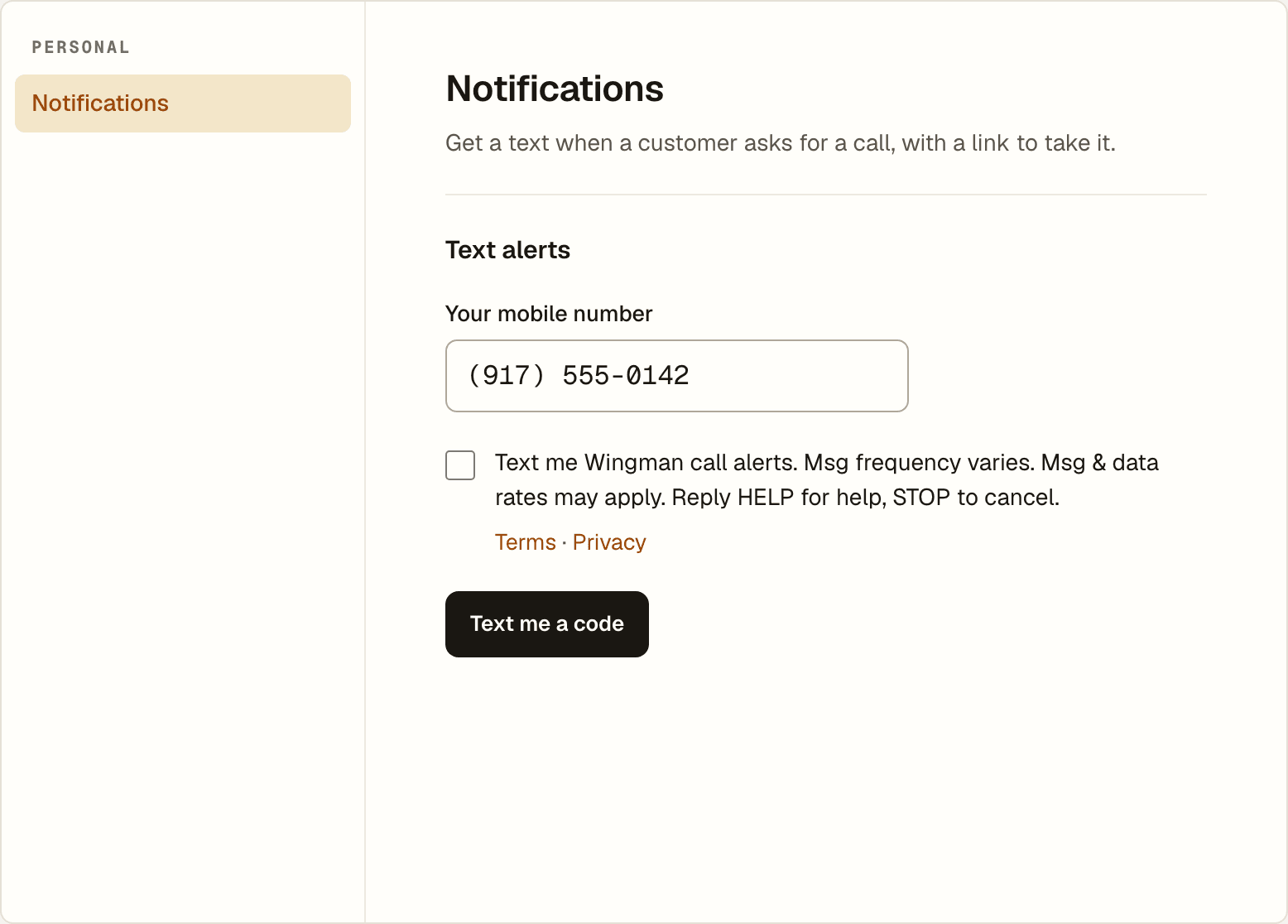
1. In Wingman, open Settings, then Notifications. Enter your own mobile number and tick the box: “Text me Wingman call alerts. Msg frequency varies. Msg & data rates may apply. Reply HELP for help, STOP to cancel.” Then select Text me a code.
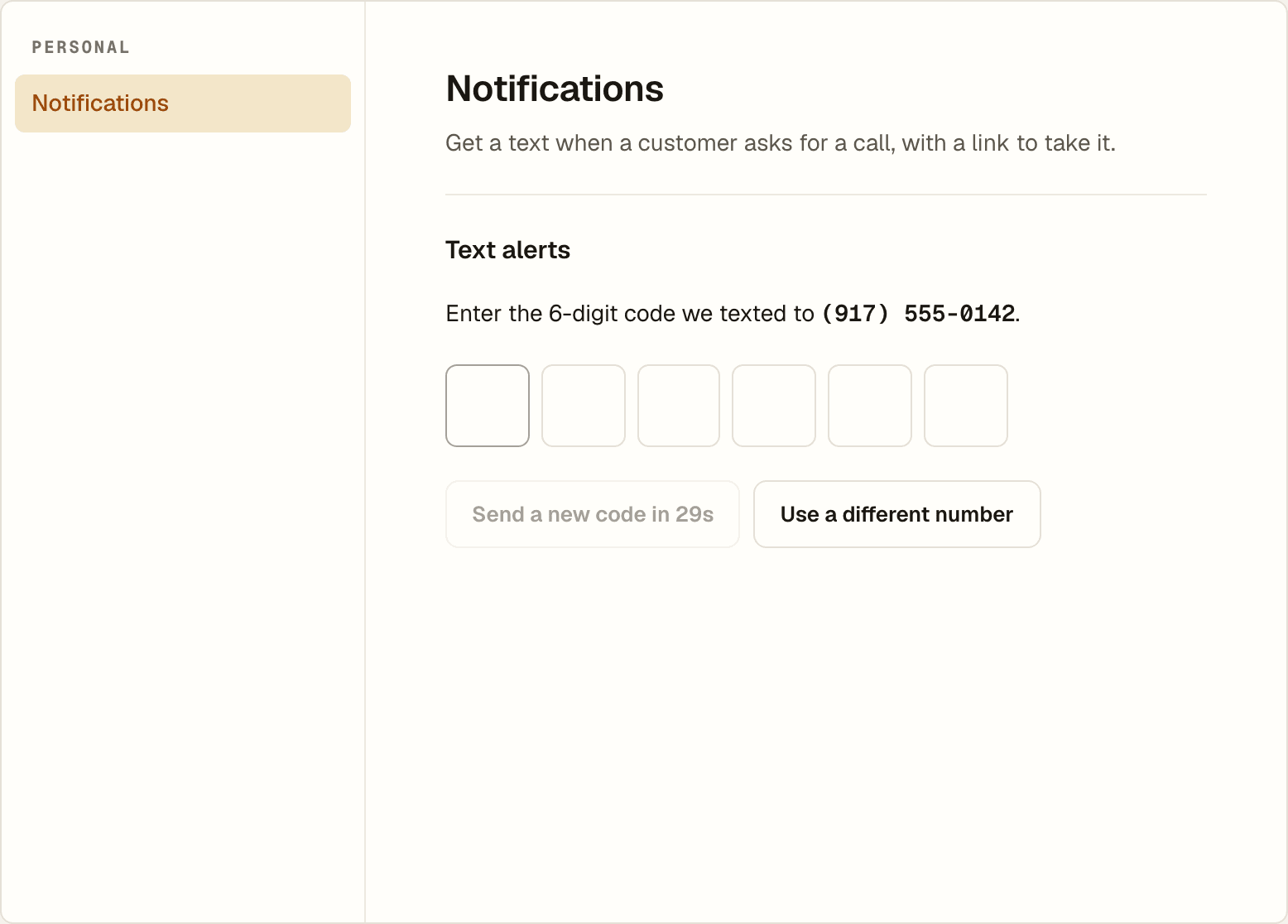
2. We text a 6-digit code to that number. Enter it to confirm the phone is yours.
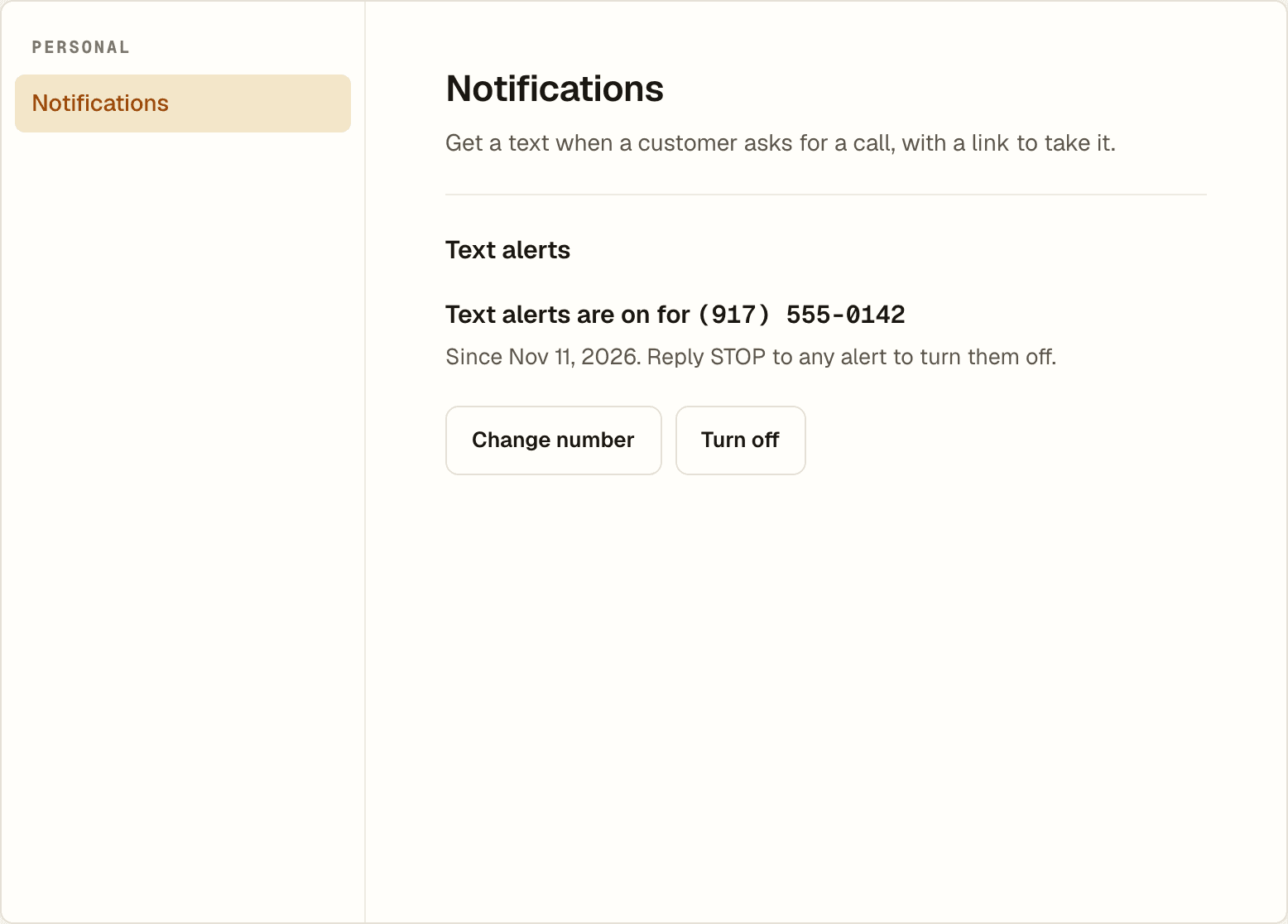
3. Alerts are on. We text you once to confirm it.
How to stop or get help
Reply STOP to any alert. We send one text confirming it, then no more alerts. You can also turn alerts off in Settings, then Notifications.
Reply HELP for help, or email support@mcapilot.com.
Your number
We use your number only to send these alerts. We never share or sell your number or your opt-in data to third parties or affiliates for marketing. Read the text alert terms and the Privacy Policy.